
Why Mobile RDP Matters
How to Connect RDP on Mobile Devices Remote Desktop Protocol (RDP) is more than just a convenience its a necessity for today s mobile workforce With RDP you can access your desktop from anywhere whether you’re working remotely traveling or away from your primary device Mobile RDP makes it possible to perform quick fixes manage servers or retrieve important files without carrying a laptop For IT administrators freelancers and professionals mobile RDP ensures uninterrupted productivity and smooth remote operations with just a few taps on a smartphone or tablet How to Connect RDP on Mobile Devices
 Mobile Compatibility
Modern smartphones are powerful enough to handle full desktop sessions Both Android and iOS support the official Microsoft Remote Desktop app which is free secure and optimized for mobile use The app provides encrypted connections touch gesture support and a responsive interface that mirrors your desktop. Whether you re on a phone or tablet mobile RDP delivers seamless cross‑platform access allowing you to work efficiently and securely from virtually anywhere
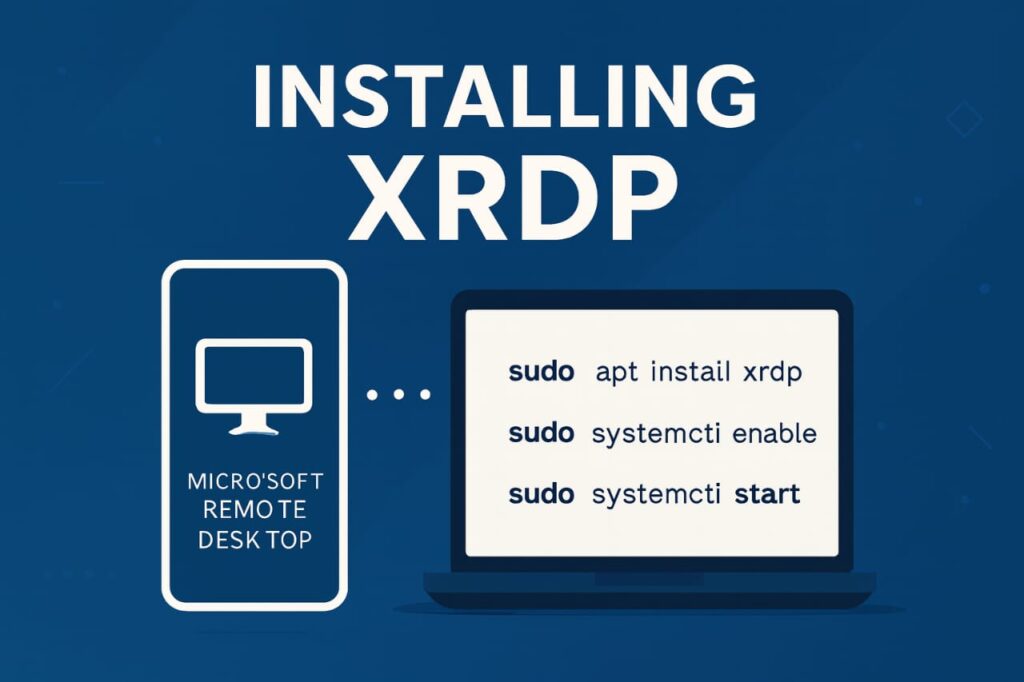 Android Setup
Getting started with RDP on Android is simple Download the Microsoft Remote Desktop app from the Play Store then tap the icon to add a new PC Enter your computer’s IP address username and password Customize settings such as touch controls screen resolution and performance options for smoother use For best results connect over a stable Wi Fi network. Ensure that your PC has Remote Desktop enabled in system settings and is reachable on the same network or via public IP if you plan to access it externally How to Connect RDP on Mobile Devices
iOS Setup
On iOS devices install the Microsoft Remote Desktop app from the App Store Tap Add PC and enter your computer s name or IP address. You can enable clipboard sharing customize display preferences and activate Face ID for secure quick login The app supports gestures and landscape mode making navigation easier. Your PC must be online and accessible via local or public network For corporate environments How to Connect RDP on Mobile Devices you can configure gateway settings to ensure secure connectivity How to Connect RDP on Mobile Devices
 Network Access
To enable remote access go to your PC’s Remote Desktop settings and switch on the feature Open port 3389 in your firewall to allow incoming connections For external access configure port forwarding on your router or use a VPN for encrypted tunneling. These steps guarantee stable and secure connectivity allowing you to access your desktop from anywhere Always test your setup before relying on it for critical tasks to avoid downtime How to Connect RDP on Mobile Devices
Performance Tips
For smoother mobile RDP sessions lower your screen resolution and disable unnecessary animations Use landscape mode for better visibility and control Android users can enable shortcuts for faster navigation while iOS users can pair a Bluetooth keyboard for enhanced productivity Avoid unstable mobile networks as they can cause lag or disconnects. Prioritize Wi Fi or high‑speed mobile data for optimal performance especially How to Connect RDP on Mobile Devices when handling large files or running resource‑intensive applications How to Connect RDP on Mobile Devices
Security Setup
Security should always be a priority when using RDP Use strong passwords and avoid saving credentials on your mobile device Enable Network Level Authentication (NLA) for added protection. Prefer two‑factor authentication and never connect over public Wi‑Fi without a VPN. VPNs encrypt your connection, making it harder for attackers to intercept data. Keep your RDP app and system software updated to patch vulnerabilities and maintain a secure environment.
Recommended Apps
While Microsoft Remote Desktop remains the most reliable option, alternatives like RD Client Splashtop and Remote Desktop Manager provide extra features such as file transfer multi‑monitor support and advanced customization Depending on your workflow you can choose the app that best fits your needs Enterprise users may prefer apps with enhanced security while freelancers might value flexibility and ease of use. Testing different apps will help you find the perfect balance of performance and usability.How to Connect RDP on Mobile Devices
Summary
Mobile RDP is transforming the way professionals IT admins and freelancers work remotely This guide explains why mobile RDP matters how Android and iOS devices support secure remote desktop access and step by‑step setup instructions for both platforms It also covers essential network configurations performance tips and advanced security practices like VPNs and two factor authentication. Finally it highlights recommended apps beyond Microsoft Remote Desktop giving users flexibility to choose the best solution for their workflow With the right setup mobile RDP ensures smooth secure and efficient access to your desktop from anywhere How to Connect RDP on Mobile Devices