
 Introduction to RDP on Linux
Remote Desktop Protocol (RDP) is a widely used technology for connecting and controlling computers remotely Although it was originally designed for Windows, Linux users can also benefit from RDP by accessing Windows systems or hosting their own sessions.Linux RDP Guide Setup & Usage
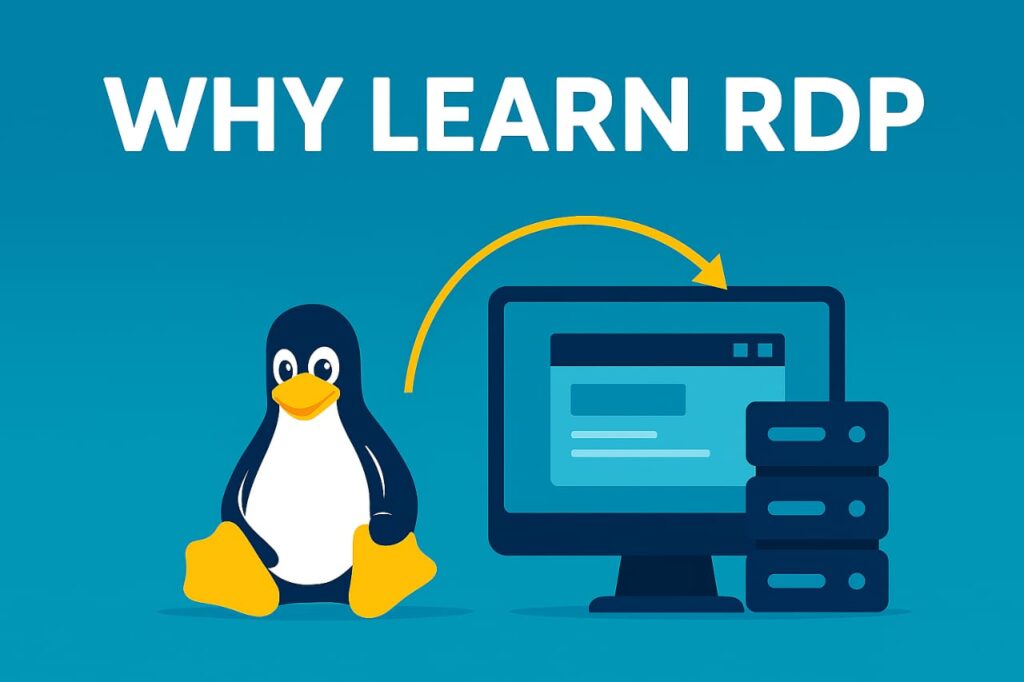 Why Beginners Should Learn RDP
For new Linux users Remote Desktop Protocol (RDP) offers a streamlined and user friendly way to manage servers troubleshoot systems and collaborate across platforms Whether you re handling cloud infrastructure or accessing remote machines RDP simplifies the process by bridging the gap between Linux and Windows environments With secure connectivity and intuitive controls it enables smoother workflows faster issue resolution and efficient remote operations even for those just starting out
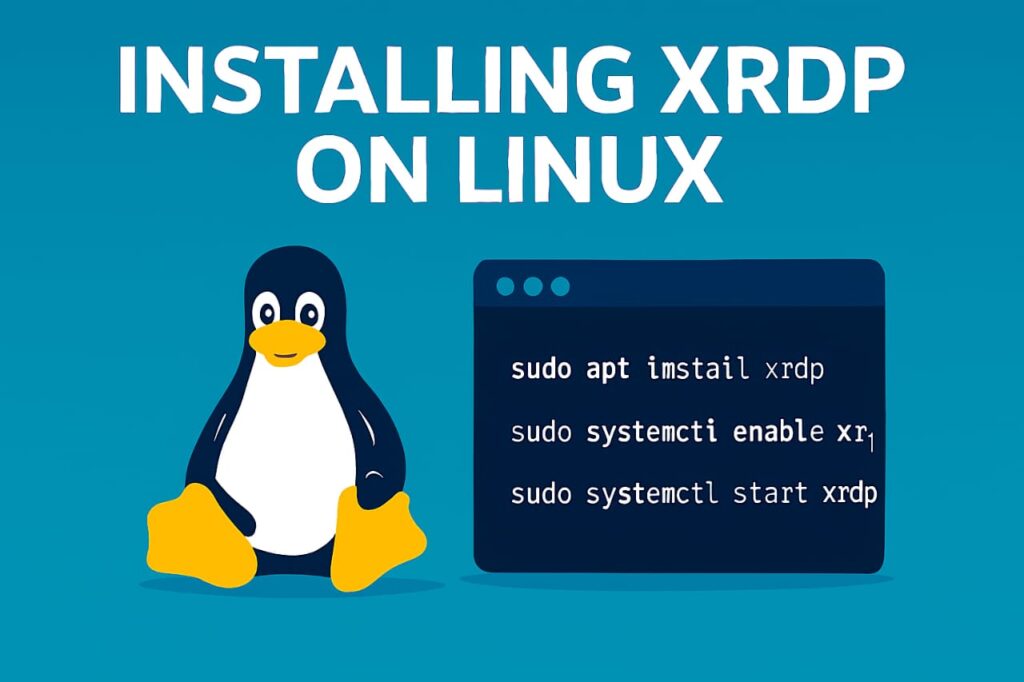 Installing xrdp on Linux
The most common way to enable RDP on Linux is by installing xrdp an open-source implementation of the protocol On Ubuntu or Debian-based systems the process is straightforward First update your system using sudo apt update then install xrdp with sudo apt install xrdp and finally enable and start the service with systemctl commands Once installed Linux machines can accept RDP connections from standard clients like Microsoft Remote Desktop. Beginners are advised to install lightweight desktop environments such as XFCE to ensure smooth compatibility.Linux RDP Guide Setup & Usage Linux RDP Guide Setup & Usage
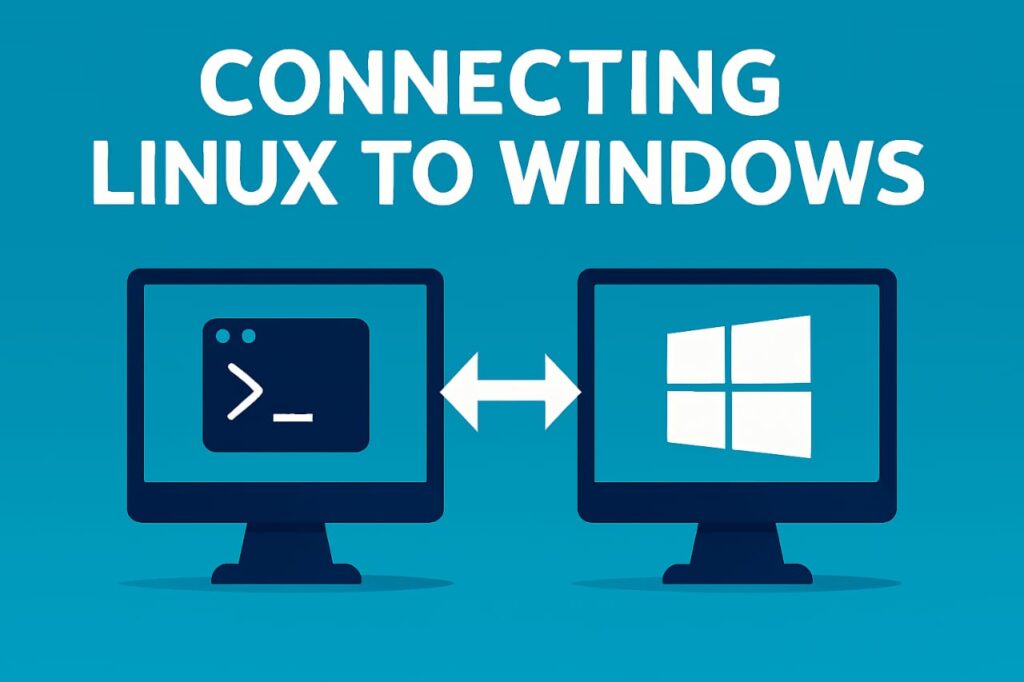
Connecting Linux to Windows
Linux users often need to connect to Windows servers Applications such as Remmina and xfreerdp make this possible Remmina provides a graphical interface for managing multiple connections while xfreerdp allows command-line access. For example, the command xfreerdp /v:192.168.1.100 /u:username /p:password connects a Linux system to a Windows machine using its IP address and credentials Saving profiles in Remmina helps avoid typing credentials repeatedly and makes the workflow faster.Linux RDP Guide Setup & Usage Linux RDP Guide Setup & Usage
 Security Essentials
RDP can be risky if not secured properly Beginners should use strong passwords and enable multi factor authentication Avoid exposing RDP directly to the internet and configure firewalls to limit access For added encryption, SSH tunneling or VPNs should be considered. Tools like fail2ban can block brute-force attempts by monitoring failed logins Keeping the system updated ensures that security patches are applied regularly Linux RDP Guide Setup & Usage
Optimizing Performance
Smooth performance is important for beginners Choosing lightweight desktop environments like XFCE or MATE reduces resource usage Adjusting resolution and color depth in the RDP client improves responsiveness Disabling unnecessary visual effects and ensuring stable network connectivity further enhance performance Wired connections are recommended for critical sessions to reduce latency and packet loss
Troubleshooting Common Issues
Beginners often face problems such as black screens or failed connections To fix these check if xrdp is running with systemctl status xrdp verify firewall settings for port 3389 and switch from Wayland to Xorg if compatibility issues occur Reviewing logs in /var/log/xrdp.log provides deeper diagnostics. Restarting the xrdp service after configuration changes ensures new settings are applied correctly
Best Practices for Beginners
To maintain a secure and efficient setup keep your Linux system updated regularly Use Remmina for managing multiple sessions and test connections locally before exposing them externally Documenting your configuration is helpful for future reference Practicing connections in a controlled environment builds confidence and reduces mistakes allowing beginners to manage remote desktops with ease.
Summary
Linux RDP Guide This article explained how to install xrdp connect Linux to Windows secure sessions and optimize performance By following best practices such as strong authentication lightweight desktop environments and proactive troubleshooting beginners can enjoy safe and reliable remote desktop access RDP on Linux is a practical solution for anyone seeking smooth cross platform connectivity